

Canvas toolbar
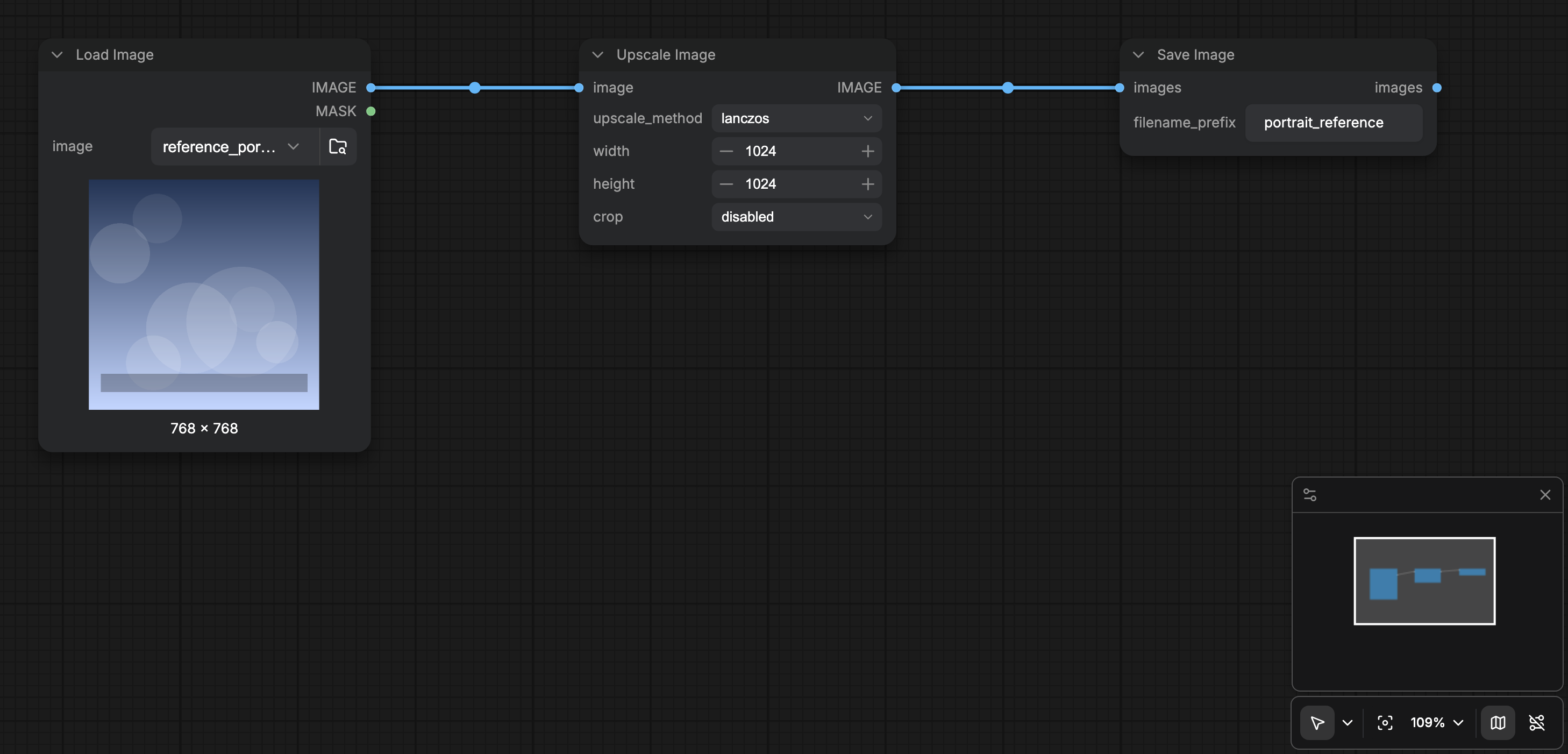
When Show graph canvas menu (Comfy.Graph.CanvasMenu) is on (default), a floating toolbar sits at the bottom-right of the canvas:
You can hide the whole toolbar with Show graph canvas menu in Lite Graph / Canvas settings.
View menu
The View menu registers the same navigation commands so you can run them from the menu bar or the command palette:- Toggle Bottom Panel
- Browse Templates
- Focus Mode
- Canvas Performance (
Comfy.ToggleCanvasInfo, togglesComfy.Graph.CanvasInfo) - Toggle Minimap
- Toggle Link Visibility
- Zoom In / Zoom Out / Fit View
Focus Mode
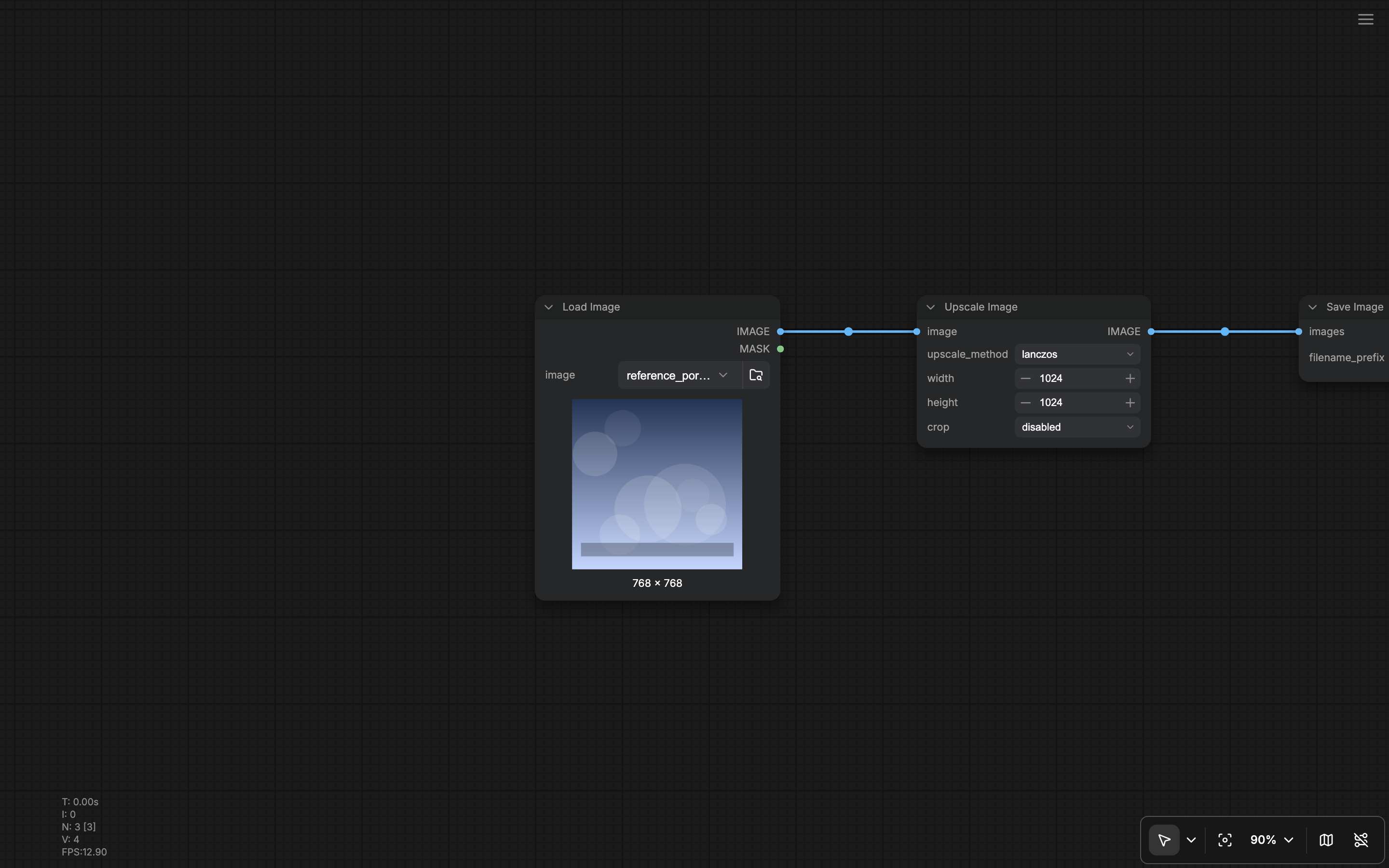
Focus Mode (Workspace.ToggleFocusMode) hides workspace chrome so you can concentrate on the graph. While it is on:
- The top menu section is hidden (new menu).
- Left/right sidebar panels and the bottom panel are not rendered in the splitter layout.
- A hamburger control appears so you can exit Focus Mode (Show menu).
Minimap options
Beyond show/hide, Settings under Minimap control what the map draws (node colors, links, groups, bypass state, error state). See Lite Graph settings and related Appearance entries when present.Links and canvas globals
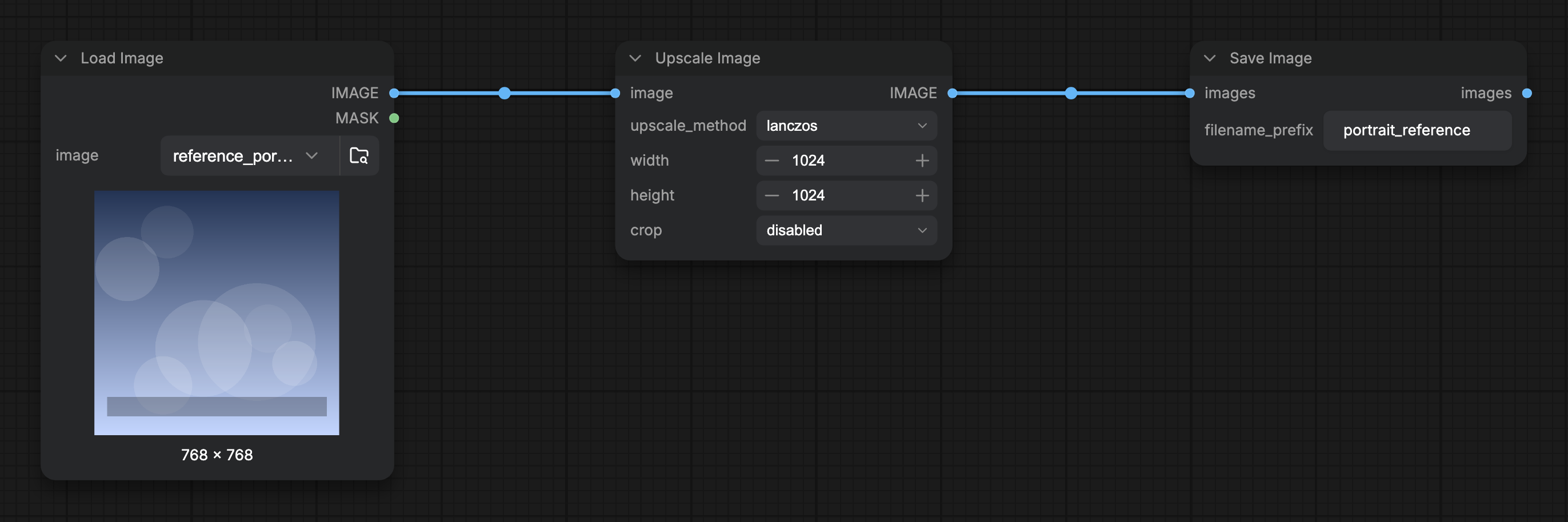
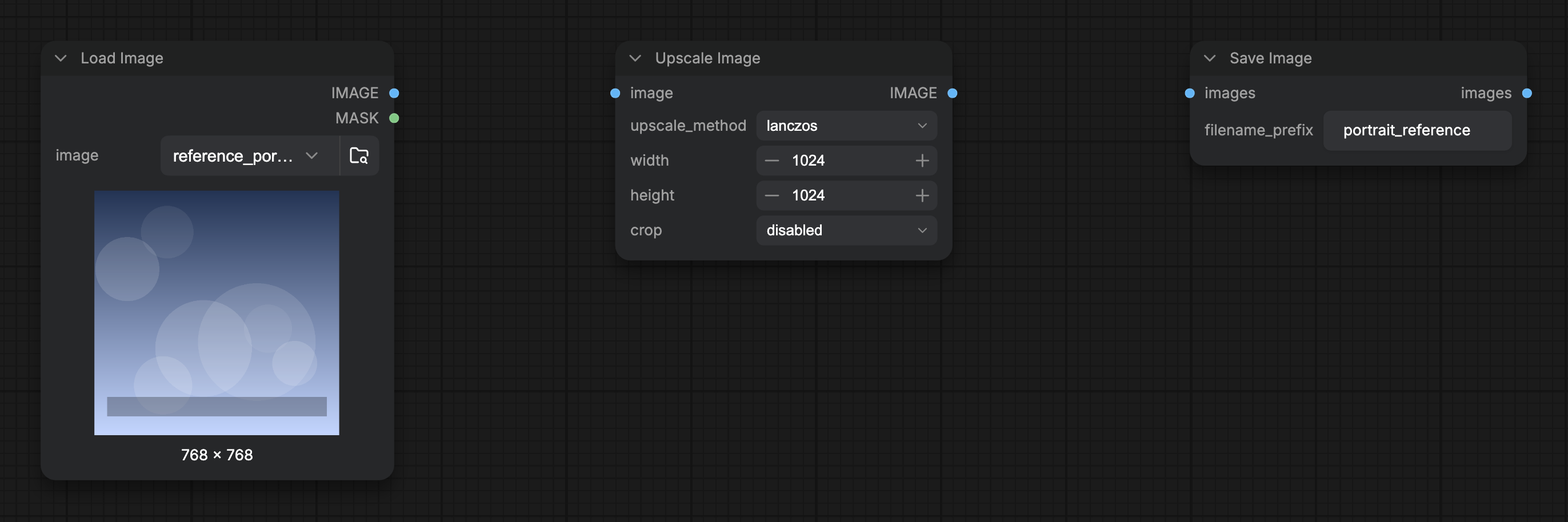
Link shape and whether connected links are shown are also available as quick toggles in the Right Side Panel Global Settings when nothing is selected, and in full under Lite Graph settings (Comfy.LinkRenderMode and related options). Grid spacing and snap-to-grid live in the same Global Settings / Lite Graph areas.
Selecting links
Requires ComfyUI frontend 1.58.0 or later. Selecting links with a frame is default canvas behavior in Select mode (not a settings toggle). Drag a frame across the connection wires you want to act on. A frame that captures no nodes, groups, or reroutes selects every visible link it crosses, and the selection toolbox replaces its node buttons with two link actions: Hide, which keeps the connection and hides the wire, and Delete, which removes the link from the graph. Each action is one undo step, andDelete or Backspace also removes a link selection.
Shift and Alt frames select nodes and groups only, and the Hand canvas mode never selects links.
Clicking a node input or output to act on its links
Requires ComfyUI frontend 1.60.0 or later. Click a node’s input or output point instead of dragging from it. The canvas selects every link attached to that point, which is one link on an input and every link on an output, and the selection toolbox offers Hide and Delete, the same actions a frame selection uses.- If every selected link is already hidden, the toolbox shows Show instead of Hide.
- Hide acts on visible links only and Show on hidden links only, so neither adds an empty undo step.
- Delete removes every link on that point, hidden ones included.
- Hold
Shift,Ctrl,Cmd, orAltwhile clicking to keep the current selection. Ctrl+Altclick breaks the link instead, as it does elsewhere on the canvas.- A point with no links ignores the click, and so does a canvas with link visibility off, because every wire is hidden there. Dragging from a point still starts a new link.
Related pages
- Interface Overview
- Shortcuts
- Lite Graph settings
- Right Side Panel (Global Settings quick toggles)
- Bottom Panel